
Compatibility rule
A model can support one DeX mode without supporting every mode
Treat Samsung DeX as several related workflows. A compatible phone may output DeX to a monitor, cast Wireless DeX to a display, or have once worked with the Windows PC app. One UI 7 ended DeX for PC support on updated or newly released devices, but it did not automatically remove every monitor-based DeX feature.
Samsung DeX supported devices list and compatibility factors
| Phone or tablet model | Selected Galaxy flagship and tablet families; not every Galaxy device |
|---|---|
| Software | One UI version changes PC-app support and interface behavior |
| Wired display | Requires compatible video output, cable or hub, and monitor input |
| Wireless display | Requires device support and a compatible Miracast receiver |
| DeX for PC | Legacy mode; not supported on One UI 7 or later |
| Region and carrier | Feature menus and availability can vary |
Samsung DeX supported devices list by Galaxy family
Samsung introduced DeX on flagship-class Galaxy phones and expanded it across later S, Note, Z Fold, and premium Tab devices. That broad family description is useful for orientation, but it is not a substitute for checking the exact model. Fan lists often copy one another and can incorrectly extend support to an entire series when only specific variants qualify.
Galaxy S flagship models from the DeX era, Galaxy Note flagships, Z Fold devices, and many Tab S tablets are the most likely candidates. Galaxy Z Flip models and much of the Galaxy A range have historically had different support boundaries. Hardware video output, thermal design, firmware features, and product positioning all affect the decision.
Use the model number shown under Settings > About phone rather than relying only on a marketing name. Regional suffixes can identify a carrier or market variant. When a model is not explicitly confirmed, test only with official software and a known-good cable or display; do not install an APK that claims to unlock DeX.
- Galaxy S flagship family: frequently supported, but verify the exact generation and mode.
- Galaxy Note family: many flagship models support monitor-based DeX.
- Galaxy Z Fold family: generally positioned for DeX and multitasking; verify current One UI behavior.
- Galaxy Tab S family: many models offer tablet-focused DeX interfaces and external-display options.
- Galaxy A and Z Flip families: do not assume support from the family name alone.
Check compatibility for the DeX mode you actually want
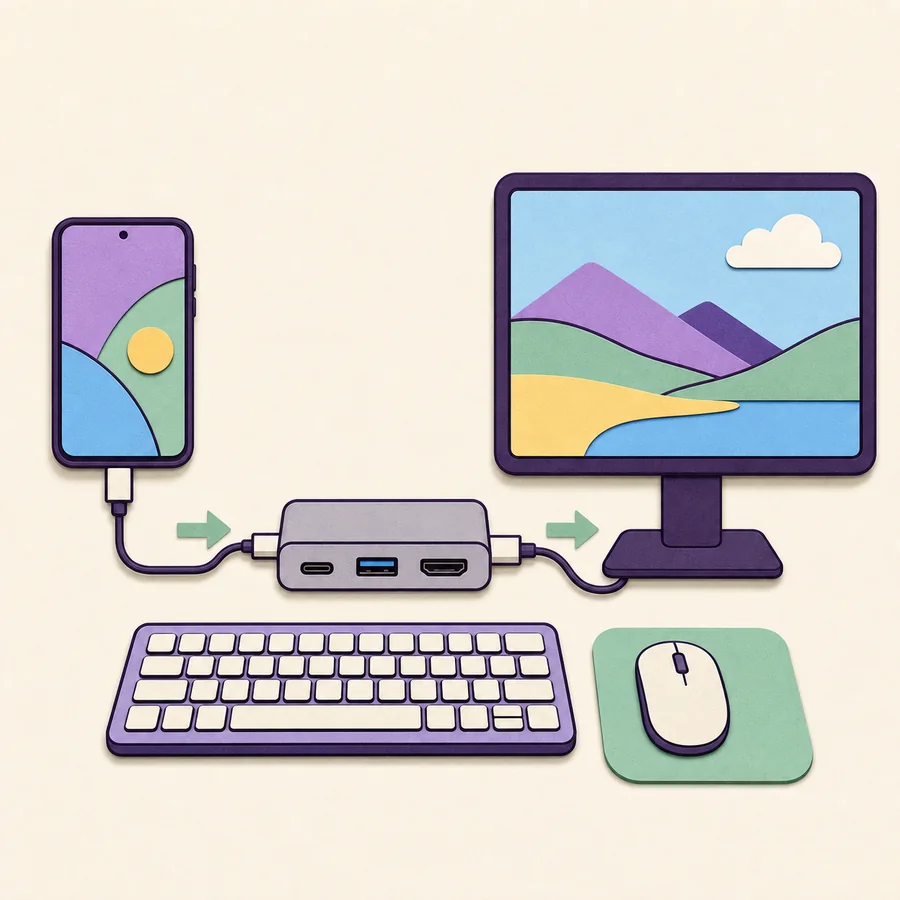
For a direct monitor setup, the phone or tablet must support the required display path. The cable or hub must carry video, and the display must accept the corresponding input. A USB-C port can look identical across devices while offering different data, charging, and video capabilities.
For Wireless DeX, the Galaxy device and receiver must support the necessary wireless-display behavior. Many televisions advertise screen mirroring without delivering the exact experience or latency expected for desktop work. A wired connection is usually more predictable for long sessions, high-resolution displays, keyboards, storage, and charging.
For DeX for PC, the Windows application and supported phone software must both qualify. Samsung's current support page says Galaxy devices released with or updated to One UI 7 or later no longer support DeX for PC. This is why a Windows 11 computer can meet its own requirement while the phone still fails the pairing.
How to check Samsung DeX on your phone or tablet
Open Settings and search for Samsung DeX. Depending on the device and One UI release, the control may appear under Connected devices or as a Quick settings tile. A missing search result is a stronger warning than a missing Windows download: the feature must exist on the Galaxy device itself.
Record the model name, model number, Android version, and One UI version shown in About phone or About tablet. Then compare that information with Samsung's product or support documentation for the specific market. If you intend to use an external display, also check whether the device specification includes USB-C video output or DeX support.
If the DeX menu exists but a display does not react, move to connection troubleshooting. If the menu is absent and Samsung does not list the model, a driver or APK is unlikely to help.
- 1
Find the exact model
Open Settings > About phone or About tablet and note the model number.
- 2
Read the One UI version
Open Software information and check whether the device uses One UI 7 or later.
- 3
Search Settings for DeX
Look for Samsung DeX, Connected devices, or the Quick settings tile.
- 4
Choose the target mode
Decide between a Windows window, direct monitor, or wireless display before buying hardware.
- 5
Verify accessories
Confirm video output, power delivery, cable bandwidth, and display compatibility.
Accessories can make a supported device look unsupported
A supported Galaxy phone cannot send a desktop image through a charge-only cable. Likewise, a USB-C hub may support data and charging but omit HDMI video, or it may need external power before the monitor handshake becomes stable. Check the hub specification for video output and power delivery rather than assuming every port is active.
For HDMI, verify the correct input on the monitor and test another cable. For USB-C monitors, confirm that the display port accepts video input instead of serving only as a service or upstream USB connection. Powering the phone while using DeX can reduce battery drain and improve long-session stability.
Wireless failures can come from the receiver rather than the phone. Put the TV or adapter into its screen-mirroring mode, remove old pairings, reduce distance, and temporarily disconnect VPN or hotspot configurations that interfere with discovery.
What to do when a Galaxy device is not supported
Do not install a modified DeX APK or firmware package. DeX is integrated with Samsung's system software, hardware capabilities, window manager, and display stack. A package file cannot safely add missing video output or product-level support.
For Windows use, Link to Windows may provide notifications, photos, messaging, calls, file access, and selected app experiences. For a general Android screen on Linux or another desktop, established open-source screen-control tools may be an option, but they are not Samsung DeX and should be evaluated separately for privacy, security, and setup complexity.
If a desktop workspace is essential, choose a confirmed supported Galaxy model or a tablet with an appropriate DeX implementation instead of paying for several adapters in the hope that an unsupported phone will begin outputting video.
A website that offers a DeX mod APK, compatibility unlock, or portable PC build cannot change the phone's hardware and firmware support boundary.
Samsung DeX mode compatibility checklist
This table describes the requirements to verify. It is not a promise that every member of a product family supports every feature.
| Mode | Phone or tablet | Other hardware | Software limit |
|---|---|---|---|
| Direct monitor DeX | Model with wired DeX and video output | Video-capable USB-C cable, hub, or HDMI adapter | Varies by device and One UI |
| Wireless DeX | Model with Wireless DeX | Compatible Miracast TV or receiver | Availability and latency vary |
| DeX for PC | Legacy-compatible model | Windows 10/11 PC and data cable | Not supported on One UI 7+ |
| Tablet DeX | Compatible Galaxy Tab model | Optional keyboard, mouse, and external display | New and Classic DeX behavior can differ |
Samsung DeX supported devices FAQ
Do all Samsung Galaxy phones support DeX?
No. DeX is available on selected models, especially certain flagship phones and tablets. Check the exact model number, Samsung documentation, One UI version, and desired connection mode.
Does the Galaxy A series support Samsung DeX?
Do not assume the whole A series supports DeX. Availability varies and many Galaxy A models lack the required feature or video output. Verify the exact model in Samsung's documentation and Settings.
Does a Galaxy Z Flip support DeX?
Support boundaries differ between Fold and Flip product lines and can change by generation. Verify the exact model rather than applying Z Fold compatibility to a Z Flip device.
Can a supported phone use DeX for PC on One UI 7?
Samsung says DeX for PC is no longer supported on Galaxy devices released with or updated to One UI 7 or later. Direct monitor DeX may still be available on compatible hardware.
Why is Samsung DeX missing from Quick settings?
The tile may be hidden, moved, or unavailable for the model and software. Search Settings for Samsung DeX, edit the Quick settings panel, and verify the exact device model.
Can an APK add DeX to an unsupported phone?
No legitimate APK can add missing USB-C video output or complete Samsung system integration. Avoid modified packages and use a supported device or another phone-integration method.
Official compatibility references
Because Samsung changes features by model and software, use these official pages as the starting point and verify the exact regional product documentation.